How to Free Up Storage on Your iPhone: A Step-by-Step Guide
- Technology Paul
- Sep 2, 2024
- 3 min read

Simple Steps to Free Up Storage on Your iPhone
Running out of storage on your iPhone can be frustrating, especially when you’re trying to download a new app, take more photos, or install the latest iOS update. Luckily, there are several straightforward ways to free up space on your device without losing any important data. Here’s a step-by-step guide to help you reclaim storage on your iPhone.
1. Check Your Storage Usage
Before you start freeing up space, it’s important to understand what’s taking up the most storage on your iPhone.
Go to Settings > General > iPhone Storage.
You’ll see a breakdown of what’s using your storage, including apps, photos, media, and system files.
This will give you a clear idea of where you can make the most impact.

2. Delete Unused Apps
One of the quickest ways to free up space is by deleting apps you no longer use.
On your home screen, press and hold the app you want to delete until it jiggles.
Tap the - icon on the app, then confirm by tapping Delete App.

Alternatively, from the iPhone Storage menu, you can see a list of apps sorted by how much space they take up. Tap on any app and select Delete App.

If you’re unsure about deleting apps, you can offload them instead. Offloading an app removes the app itself but keeps its data, so you can reinstall it later without losing any information.
In the iPhone Storage menu, tap the app and select Offload App.

3. Clear Photos and Videos
Photos and videos often take up the most space on an iPhone. Here’s how to free up some of that storage:
Delete Unwanted Photos and Videos:
Open the Photos app and go through your library, deleting anything you no longer need.

Remember to also empty the Recently Deleted album, as these files still take up space until permanently deleted.

Optimize iPhone Storage:
If you use iCloud, you can enable the Optimize iPhone Storage option.
Go to Settings > Apps > Photos > Optimize iPhone Storage.

This keeps smaller, space-saving versions of your photos on your device while storing the full-resolution versions in iCloud.
4. Clear Safari Cache
Safari’s browsing history and cache can also take up storage over time. Clearing this can free up space without affecting your saved passwords or autofill data.
Go to Settings > Apps > Safari > Clear History and Website Data.
Confirm by tapping Clear History and Data.

5. Delete Old Messages and Attachments
Text messages and their attachments (like photos, videos, and GIFs) can accumulate and take up a lot of space.
Set Messages to Auto-Delete:
Go to Settings > Apps > Messages > Keep Messages.
Choose 30 Days or 1 Year instead of Forever to automatically delete old messages.

Delete Specific Attachments:
Open the Messages app, select a conversation, and tap on the contact’s name at the top.
Tap Info, then scroll down to see all attachments.
Tap See All, select the attachments you don’t need, and tap Delete.

6. Remove Downloaded Music and Podcasts
If you download music, podcasts, or other media for offline use, these files can add up quickly.
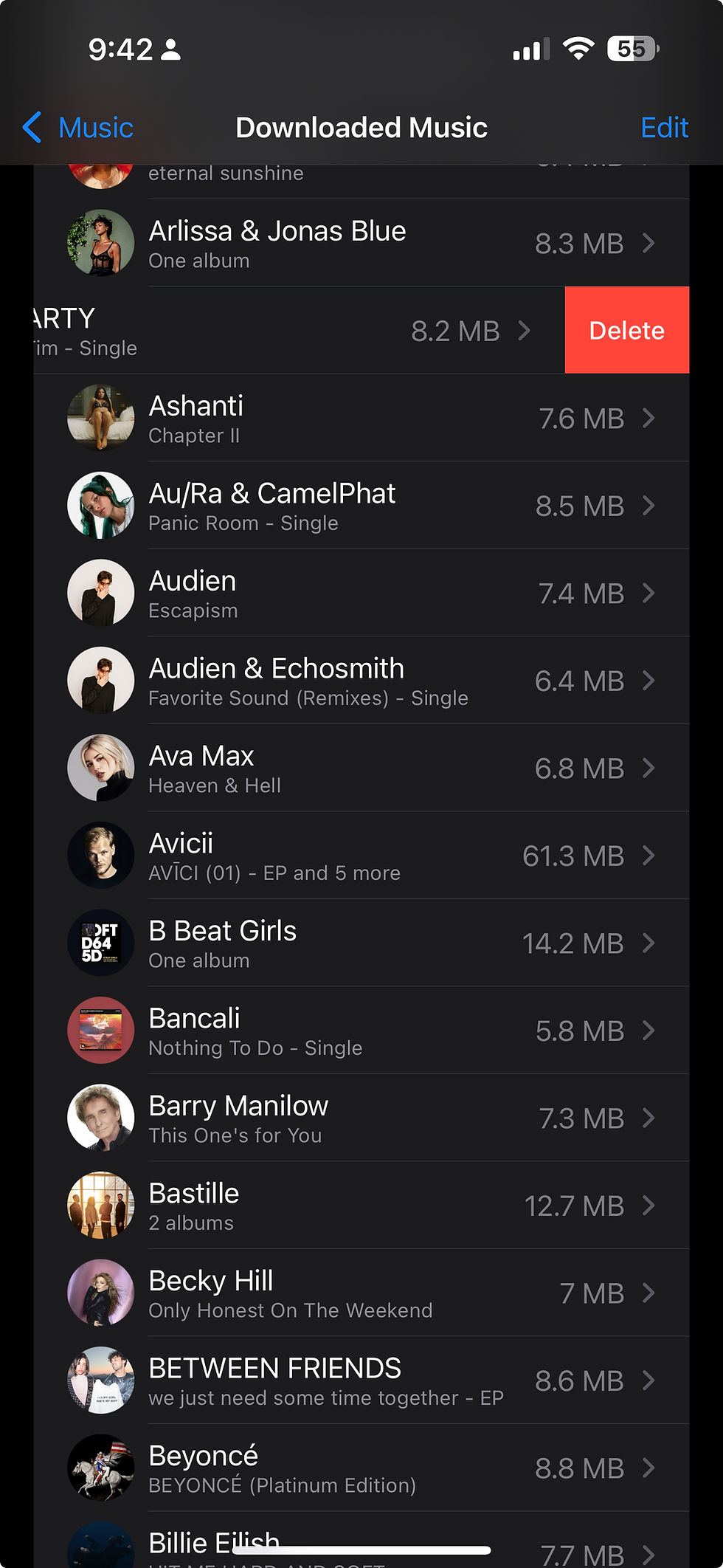
Delete Downloaded Music:
Go to Settings > Apps > Music > Downloaded Music.
Swipe left on the albums or songs you no longer need and tap Delete.
Delete Downloaded Podcasts:
Go to the Podcasts app and navigate to Library > Downloaded.
Swipe left on episodes you’ve already listened to and tap Delete.

7. Review and Delete Large Files
Your iPhone storage settings provide a list of large files that might be taking up significant space.
Go to Settings > General > iPhone Storage.
Scroll down to see the list of recommendations. Often, iOS will suggest reviewing large attachments, downloaded videos, or other space-consuming files. Delete anything you no longer need.

8. Use iCloud for Extra Storage
If you’ve tried all of the above and still need more space, consider upgrading your iCloud storage plan. This allows you to offload more photos, videos, and other files to the cloud, freeing up space on your device.
Go to Settings > [Your Name] > iCloud > Manage Storage or Buy More Storage.

Conclusion
By following these steps, you can easily free up storage on your iPhone, keeping it running smoothly and ensuring you have room for the things that matter most. Regularly managing your storage will help prevent future issues and keep your iPhone in top shape.


Comments