Explore Customization Features in iOS 18
- Technology Paul
- Sep 16, 2024
- 4 min read

Elevate Your iPhone Experience Through iOS 18 Customization Settings

Introduction
With the release of iOS 18, Apple has taken iPhone customization to another level. iOS 18 introduces a wide array of customization features that allow users to tailor their Home Screens, icons, widgets, and even the Control Center to reflect their style and needs.
In the past, iOS has been known for its more limited customization options compared to other operating systems. However, with the release of iOS 18, Apple has significantly expanded the customization features available to users.
Whether you want a sleek, minimalist look, a vibrant and colorful interface, or more functional control placements, iOS 18 gives you the tools to make your iPhone truly yours. In this article, we’ll explore all the new customization options available and how they can enhance your everyday iPhone experience.
Flexible Home Screen Layout
One of the most exciting updates in iOS 18 is the ability to fully customize the placement of app icons and widgets on your Home Screen. No longer constrained by the rigid grid system of previous versions, users can now arrange their Home Screen exactly how they want it. Whether you prefer a clean, clutter-free layout or an organized page with all your most-used apps in easy reach, iOS 18 gives you the flexibility to make it happen.
Place Icons and Widgets Anywhere
With iOS 18, you’re no longer bound by a predetermined layout. You can place icons and widgets in any open position on the screen. Want to group all your favorite apps at the bottom of the screen for easy one-handed use? Or perhaps arrange them to leave space for your favorite wallpaper to shine through? The choice is yours.


Aesthetic Customizations
iOS 18 allows users to enhance their Home Screen’s visual appeal. Whether you want to create a sleek, modern look or inject a splash of color into your interface, iOS 18’s new aesthetic customizations make it easy to personalize your iPhone’s appearance.
Dark Icons
For those who prefer a more minimalist or sophisticated look, iOS 18 introduces Dark Icons. When your iPhone switches to Dark Mode, your app icons and widgets can automatically adopt a darker, muted aesthetic. This feature not only enhances the sleekness of your home screen but also makes it easier for the eyes, especially in low-light environments. You can even set the icons to always stay dark if you prefer this aesthetic, regardless of the time of day.

Tinted Icons
For users looking to add a personal touch, Tinted Icons bring more color to your Home Screen. iOS 18 allows you to customize your app icons and widgets by applying a color tint that matches your wallpaper or sets a specific mood. Whether you’re aiming for a cohesive theme or a bold, vibrant look, the new customization sheet provides suggested colors to get you started. This feature makes it effortless to design an interface that reflects your unique style.

Larger Icons for a Streamlined Look
If you’re looking for a cleaner and more minimalist Home Screen, iOS 18 introduces a new option to make your app icons and widgets larger. This feature is perfect for those who want a more streamlined look or find larger icons easier to interact with.
By increasing the size of your icons, iOS 18 removes the app names underneath, giving your Home Screen a simpler, more modern appearance. The larger icons also make it easier to tap and navigate between apps, making this an ideal option for those who prefer a more minimal interface or want better accessibility without sacrificing style.


Control Center Redesign
iOS 18 delivers a major update to the Control Center, making it more customizable and user-friendly. With the ability to rearrange controls, add third-party app shortcuts, and even resize elements, the redesigned Control Center offers greater flexibility in managing your iPhone’s most essential functions.
Redesigned Layout
The redesigned Control Center in iOS 18 offers a more intuitive and organized layout, grouping controls based on functionality. Instead of scrolling through a clutter of individual controls, you’ll find them neatly grouped into categories like Home Controls, Media Playback, and Connectivity. This makes it quicker to find and use the controls you need most.
To access these groups, simply swipe down from the top-right corner of the screen to open the Control Center. From there, you can swipe vertically through the groups to quickly navigate between your most-used controls. For example, you might swipe to access your Media Playback group, where you can control your music or podcasts.


Customizable Controls
One of the most exciting features of iOS 18’s Control Center is the ability to completely customize the controls. You can rearrange, resize, and even add controls from third-party apps, allowing you to tailor the Control Center to fit your specific needs.

Lock Screen Controls
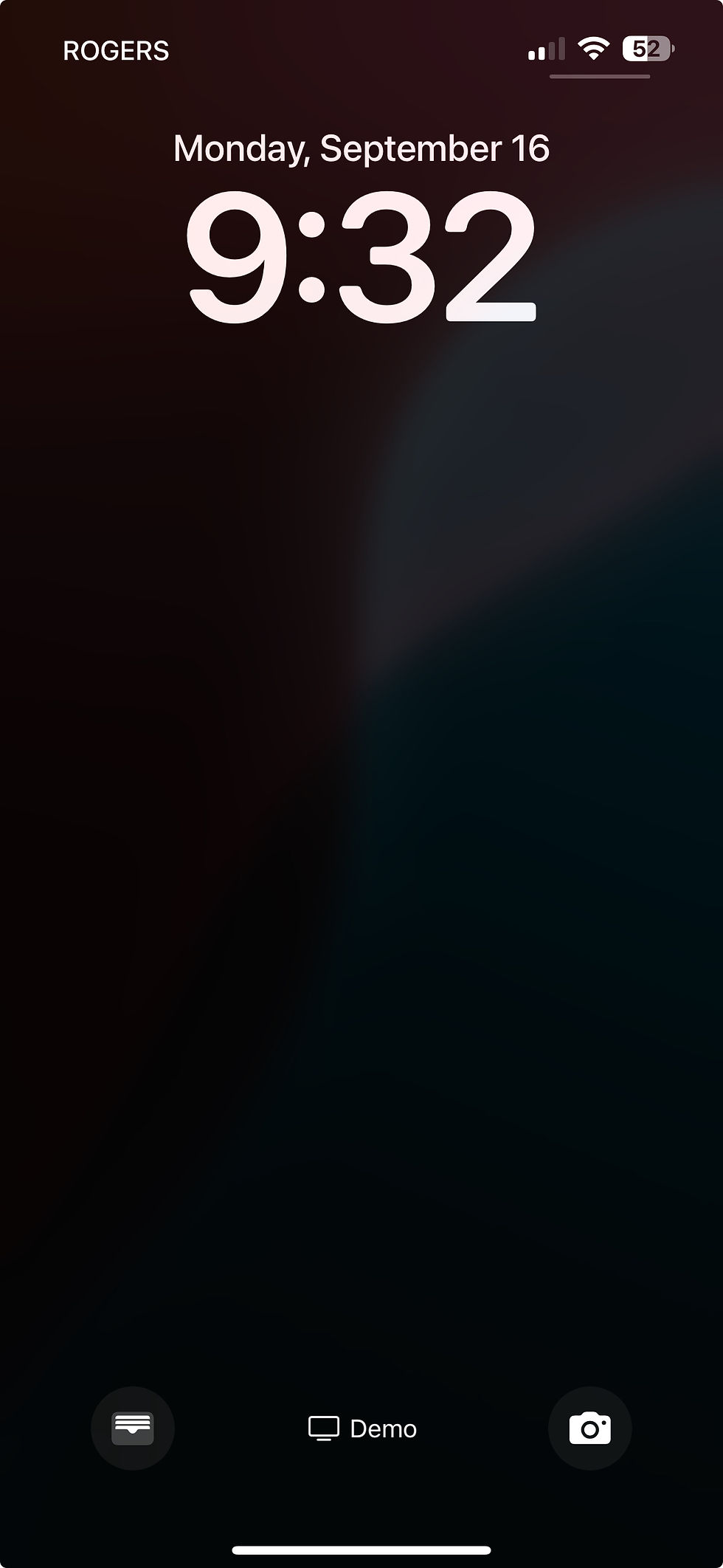
iOS 18 also allows you to customize the controls at the bottom of your Lock Screen. You can swap out these controls to create a more efficient setup, like adding quick access to your camera for capturing moments or your favorite social media apps. Alternatively, you can remove them altogether for a minimalist Lock Screen experience.
Conclusion
With iOS 18, Apple has redefined what it means to personalize your iPhone experience. From the flexible Home Screen layout to the new aesthetic customizations and the redesigned Control Center, iOS 18 provides a suite of tools that allow you to make your device uniquely yours.
These new customization features not only enhance the look of your iPhone but also improve its usability, making it easier than ever to organize your apps, access essential controls, and enjoy an interface that reflects your personality. So go ahead and explore the possibilities—iOS 18 gives you everything you need to create a personalized, efficient iPhone experience.


Comments